The Lumaneta Letter
What the little lock in your browser means
How the padlock protects your connection, what it does not do, and a quick try-it-now check.
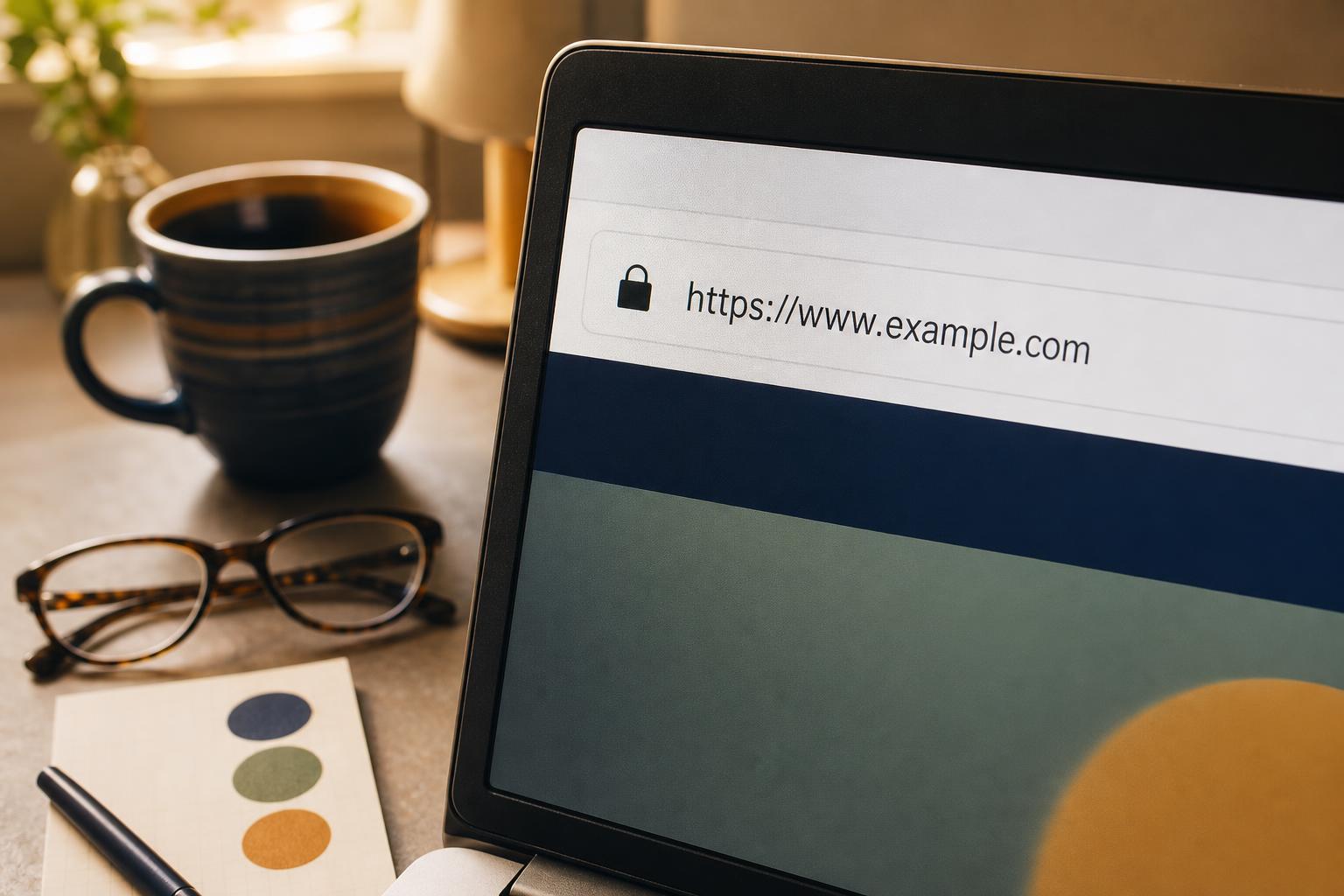
You click a link and notice the tiny lock at the left of the web address. That small icon is useful, and it is not a stamp of honesty. Calm first. The lock shows the connection between your device and the website is scrambled so people on the same Wi-Fi cannot read what you type. It does not mean the site is trustworthy or that the company is legitimate. If you have two minutes, open a site you already use and follow a short walkthrough so you can see what the lock actually protects.
The lock is about the road, not the shop
The padlock tells your browser and the website have agreed to encrypt the traffic between them. That encryption makes your typed passwords, messages, and payment numbers look like gibberish to anyone snooping on the same network. Picture the lock as a locked envelope around the conversation. It does not check the business inside the envelope. Scammers, fake shops, and pages that collect malware can and do use encrypted connections. The lock is necessary for privacy but not sufficient to prove a site is safe.
Tiny check
Something on a screen feels confusing. What is the first clue?
Tap the clue that would help Emily understand it fastest.
Try it with me: a short hands-on walkthrough
Pick a website you already know, like your bank, a favorite news site, or an online store you used before. This exercise helps you see two things at once: that the connection is encrypted and that the page matches the address you intended.
- Click the padlock at the left end of the address bar.
- Read the small summary your browser shows about the connection. Look for words like Secure, Connection, or Certificate. Do not enter sensitive data if the browser shows a warning.
- Check the address line slowly to confirm the domain is exactly right. Watch for extra words, added prefixes, or small spelling changes.
- Open the certificate or more information link (labels vary by browser) and glance at the Issued To or Site name. It should match the site you expect. If it looks unrelated, or the browser shows the certificate is expired, close the page.
Why these steps work. Clicking the lock asks the browser to show what it already knows: whether the link is encrypted and which name the encryption was issued for. Reading the domain yourself catches lookalike addresses that a lock alone will not reveal. Taking a minute now gives you a visible result you can trust more than the icon alone.

Three quick checks before you type something sensitive
When you are about to enter a password or card number, use this fast routine. It is short enough to do in place and it reduces the common mistakes that lead to trouble.
- Confirm the address starts with https and the padlock is visible.
- Read the domain slowly to make sure it is exactly the site you expect, not a lookalike or misspelling.
- If you are on public Wi-Fi and the site is unfamiliar, move to your home network or cellular data before entering sensitive information.
Why this helps. These three checks stop the most common problems: missing encryption, impersonated sites, and risky networks. They take under a minute and give you real protection without complicated tools.
When the lock is missing or your browser warns you
Browsers will show a clear warning if a site’s certificate is expired, misconfigured, or not trusted. If that happens, do not enter personal data. First, reload the page. That fixes temporary issues sometimes. Second, try visiting a different trusted site to see if your internet connection is otherwise working. If the problem is isolated to one site, contact the company using a phone number or address you already have, not a number on the page.
If you must access the site urgently, prefer your phone’s cellular data over public Wi-Fi or wait until you can use a trusted network. These choices lower the chance that someone on the same network can intercept your traffic. If a page shows a padlock with a warning symbol or a crossed-out lock, treat it as not fully secure and avoid typing anything sensitive.
A few household examples that make the lock clearer
Imagine paying a bill from a café using their Wi-Fi. The padlock will protect your information from other customers on that hotspot, but it will not stop a fake billing site that looks real. Or picture an email with a link that shows a padlock when you open it. The lock means the connection is encrypted, not that the email was legitimate. One useful habit: whenever you are dealing with money or account details, type the website address yourself or use a bookmark you created earlier. That avoids lookalike domains that rely on tiny spelling tricks.
Try it this week
Try it on one real screen
Use one idea from this issue before the week is over. Notice what changed, what still felt unclear, and the exact words on the screen. That is enough to turn a vague problem into a useful question.
Send the unclear partTry the short walkthrough now on a site you use. It takes a minute and leaves you with a clear, reliable habit that improves privacy every time you browse. Take care and be curious.
Emily
If you want a second pair of eyes on a certificate screen or a suspicious address, reply to this email and we will walk through it together.