
The Lumaneta Letter
Check a mystery USB before plugging
What to look for, quick tests, and the safe steps to take.
Hi, it is Emily. Finding a stranger USB drive in a junk drawer or on the table can tighten your shoulders. You do not need to panic. Most USB sticks are harmless, but a small number can carry software that will snoop, lock files, or pretend to be something else. I want to give you a short, practical routine you can do in a few minutes that keeps your computer and your patience intact. I will walk you through what to look for in the physical device, a few quick checks on another machine, and the one thing you should never do. If you want, treat this like a tiny quiz break and a weekly challenge to send me one confusing tech thing you find. Ready? Let us go slowly, carefully, and with good coffee nearby.
What it means
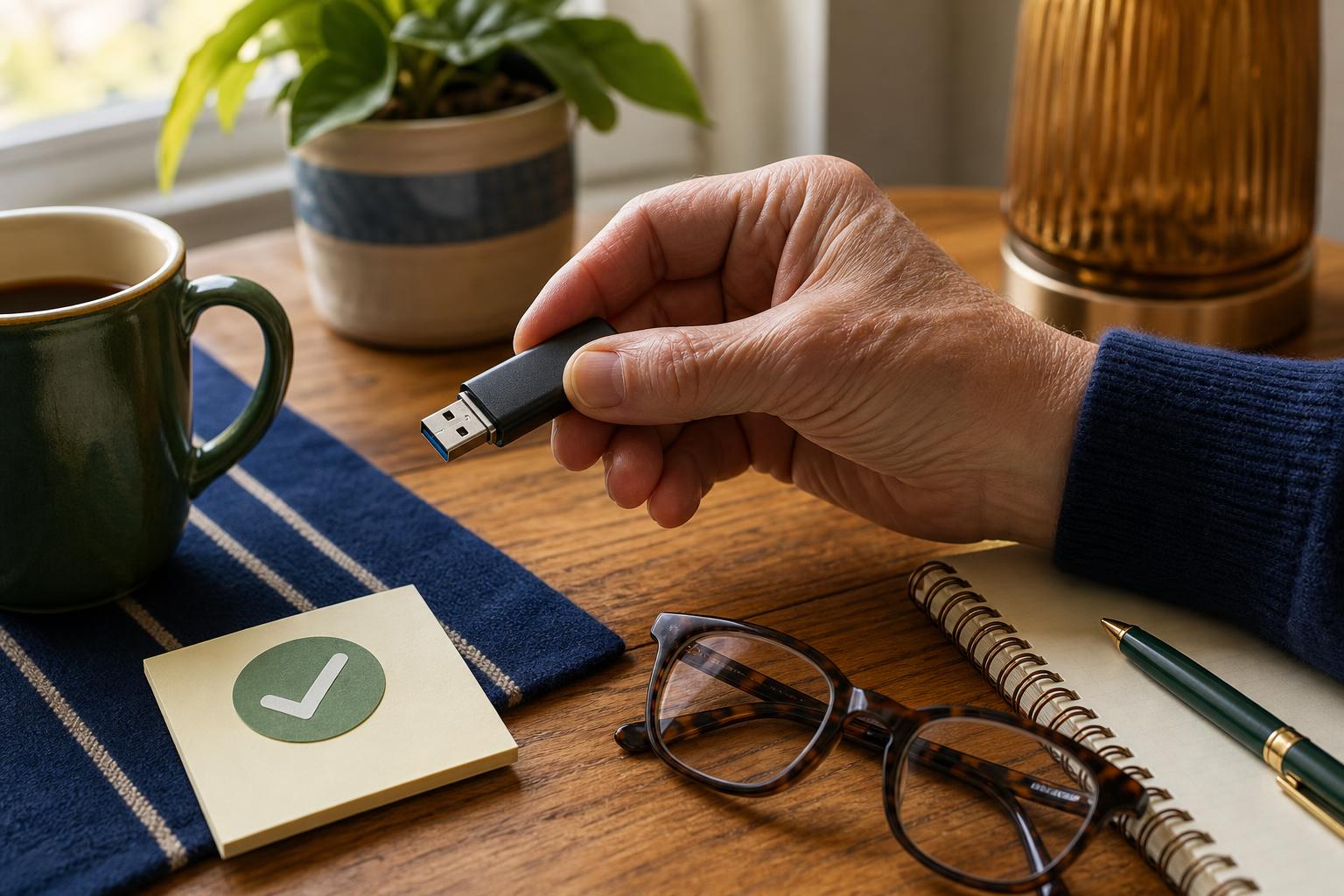
A USB drive is a small pocket-sized computer accessory that stores files and can ask your computer to run programs. When I say "risky," I mean it could be loaded with malicious software that runs automatically, or with files that trick you into opening them. Picture a thumb drive left on a kitchen counter after a potluck. It might belong to a neighbor with good intentions, or it might be a stranger testing whether someone will plug it in. The chance of danger is low, but the consequences can be annoying or worse. Treat unknown drives like found mail. Be polite, but cautious.
Tiny check
Something on a screen feels confusing. What is the first clue?
Tap the clue that would help Emily understand it fastest.
How to check it
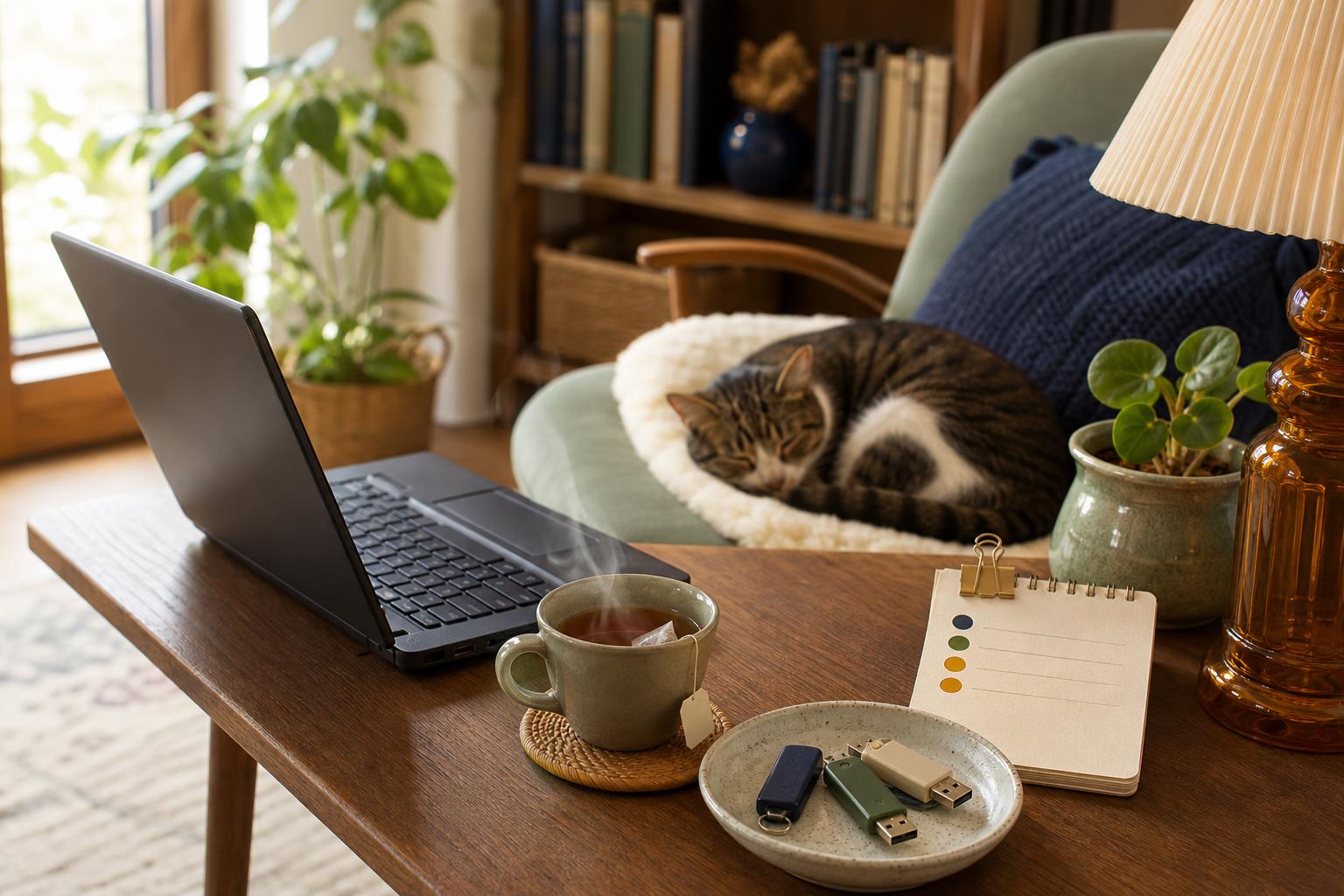
Before you put it in your main computer, run these short checks on an older or spare machine that is not connected to important accounts. If you do not have one, use a friend s computer with permission or buy an inexpensive used laptop for this purpose.
- Inspect the stick visually for damage, extra ports, or handwritten labels.
- Plug it into the spare machine and do not open files automatically. Choose to view files only.
- Scan the drive with up-to-date antivirus or Windows Defender and note any warnings.
- Copy suspicious files to a folder and do an online scan of filenames if you can.
If any scan shows a problem, stop and wipe the drive using the spare machine s settings or label the drive for safe disposal.
What not to do
Do not plug an unknown USB into your everyday work or banking computer. Do not open files that ask you to enable macros or install anything. Do not double-click something called invoice.pdf.exe. Beware of shortcuts that look like folders but are small programs in disguise. And do not be guided by curiosity alone. A single careless click can put your passwords, photos, and emails at risk. If the drive seems personal, for example with a family photo, consider contacting the owner if you can. If you cannot, treat it as potentially dangerous and follow the spare-machine routine instead of experimenting on your main device.
Safety tip
If you must use a found USB for any reason, create a clean, limited account on a spare machine first. That means an account without admin rights, so the drive cannot install software that affects the whole computer. Also turn off your Wi-Fi while inspecting the drive. This prevents any program on the stick from calling home and downloading more software. Finally, keep regular backups of important files on an external drive or cloud service that you trust. Backups make recovery possible if something goes wrong. Think of this like a fire extinguisher. You hope you never need it, but it is wise to have one.
Tech term explained
Auto-run. This is a setting that used to make computers open a drive as soon as it was plugged in. That was convenient and risky. Most modern systems do not auto-run by default, but some older machines still do. If a drive contains a program disguised as a file, that program can try to run automatically on a vulnerable machine. The fix is simple: do not open files automatically and use a machine with current updates and antivirus. If you see "enable macros" on a document, that is a red flag. Macros are tiny programs inside files that can be used for good tasks or for mischief.
The bottom line
Unknown USB drives are common and rarely harmful, but the few that are malicious can cause a lot of hassle. The best routine is short, sensible, and repeatable: inspect the drive, test on a spare machine while offline, run a virus scan, and do not open anything that asks for extra permissions. Make a habit of backups and keep your main machine off-limits to unknown sticks. If you want a tiny quiz now: spot the three red flags on a pictured drive. And for this week s challenge, send me one confusing tech thing you find. I will help you decide whether to keep it, toss it, or pass it on safely.
Try it this week
This week's tiny challenge
Forward one confusing email, text, pop-up, or screenshot this week. We will tell you what to do next, free.
Send one weird thingTake care with small things. They can have big effects.
Warmly,
Emily
If you want help walking through these steps on your machine, reply and tell me the model and operating system you have.