
The Lumaneta Letter
Check remote help before you allow it
How to verify a real technician, keep control, and stop scams.
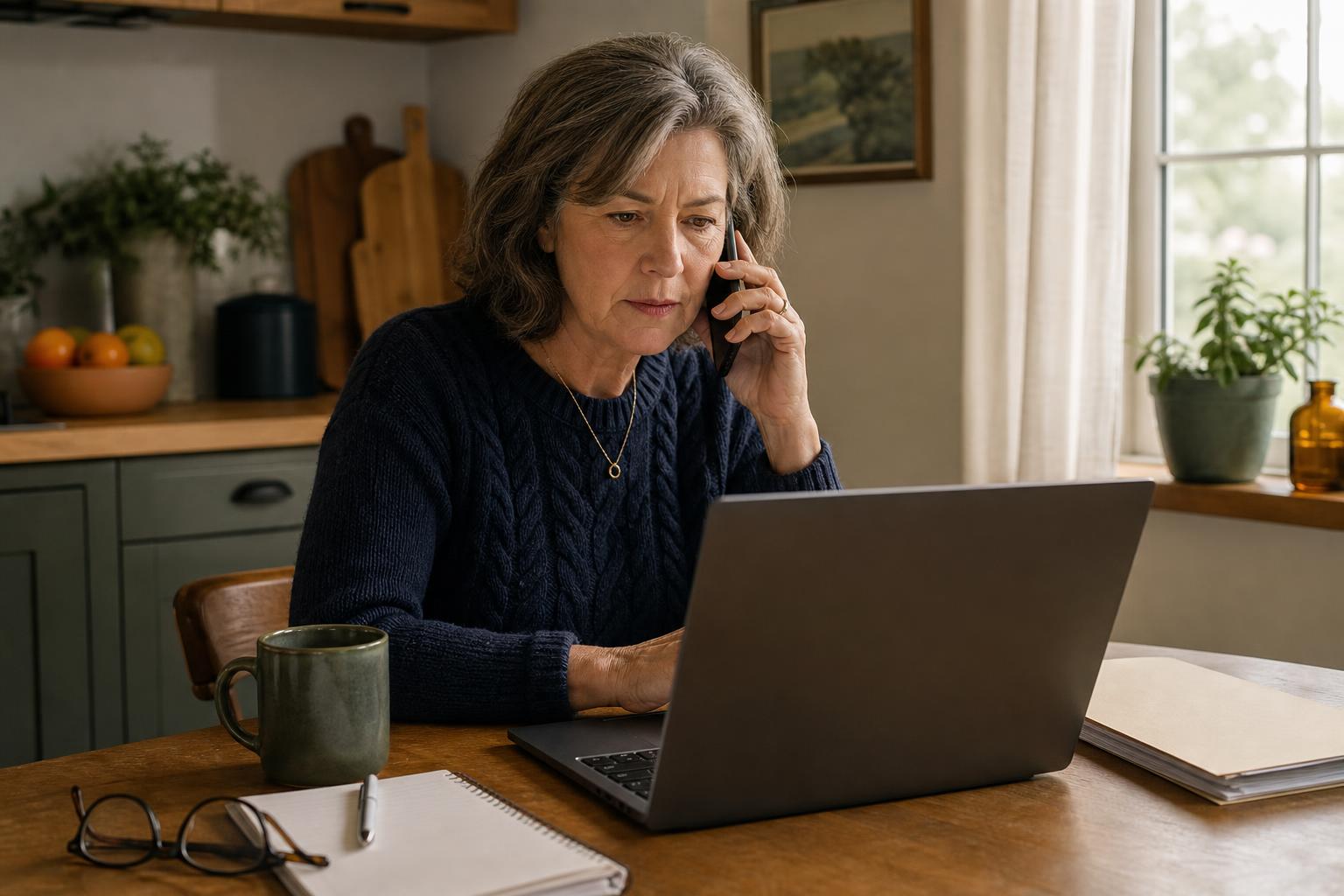
Hi. If you worry about letting someone into your computer, you are not alone and you are wise to pause. Remote support can be a very good convenience, but it is also a common way crooks try to get in. I want you to feel confident about saying yes only when the help is genuine, and to leave the session whenever you feel uncomfortable. This note walks through what a real request looks like, a short checklist to verify a caller, the small ways to keep control while they work, and the exact moments to say no. Picture the caller on the phone, you at your kitchen table with your laptop on your lap. That image will help guide what to do next.
What it means
Remote access is when another person connects to your computer over the internet so they can see your screen and control your mouse and keyboard. People who legitimately do this include technical support from your internet company, a trusted local repair shop, or a friend who knows computers. An example: the cable company technician asking to run a quick diagnostic while you watch. Remote access can save time, but it also gives someone the same control you have. If you have private documents open, bank tabs visible, or your email logged in, those become accessible. Treat a remote session like inviting someone into your living room. Close the curtains, lock the other rooms you do not want them in, and keep the door between you and the helper.
How to check it
Start by confirming who called and why before you click anything. Use a short verification checklist you can run through calmly. A simple phone call to the company or person from a number on their official website is the best proof. If someone calls claiming to be from your bank, hang up and call the number on your statement. If it is a known local shop, ask for the technician’s name and call their shop back. Follow these steps before agreeing to a remote session.
- Call back using the number on the company’s official website or your bill.
- Ask what they will do and why, and whether you can watch the whole time.
- Close any private tabs and sign out of accounts before they connect.
- Watch the screen and keep your phone line open to stop the session if needed.
These checks take minutes and they make it safe to proceed.

What not to do
Do not let someone in through a link if you did not initiate the contact. Do not follow instructions to move money, provide one-time codes, or reveal passwords. For example, a caller who says they need a code sent to your phone is often trying to take over your accounts. Turn down requests to install software that is not from the maker of your operating system or a well-known vendor. And never allow full administrative access unless you have verified the person by calling a trusted number. If a caller pressures you with time limits or threats, that is a red flag. You can always stop the session and take more time to verify.
Safety tip
Keep control during the session and know exactly how to stop it. Most remote software shows a small icon or control bar when someone is connected. Learn where that control is for the program you use so you can disconnect quickly. If you are not sure, shutting your computer lid, turning off Wi-Fi, or unplugging the Ethernet cable will end the connection immediately. Make a habit of closing bank and email windows before a session. If the helper asks to see financial sites, say no and offer to share screenshots instead. If you feel uneasy at any moment, end the call and call the company back through an independently found phone number.
Tech term explained
Screen sharing. This is when someone can only see what is on your screen but cannot control your mouse or keyboard. Remote control. This is when they can move your mouse, open files, and type. Session code. Many legitimate services give you a one-time code to paste into software to allow access. Think of it like a single-use key you hand them, not your house key. VPN. A private network that sometimes a helper might ask you to connect to. If you are not familiar with a VPN, say no until you check. If the term seems unclear, ask the person to explain exactly what they will do in plain words and to name the software they will use.
The bottom line
You do not have to be polite at the cost of your safety. A real support person will understand verification and will not rush or demand codes or passwords. Use the callback method, close private tabs, and keep your hand on the mouse. If the situation still feels off, stop the session and call back using a number from your bill or an official website. Let someone you trust look over anything you are unsure about. The few extra minutes to check are worth preventing a lot of trouble. Treat remote access like inviting someone into your house: you check who they are at the door, you control where they can go, and you end the visit when it is over.
Take care. You can do this methodically, and you do not owe anyone rushed access.
Warmly,
Emily
If you want a quick checklist you can print and keep by your phone, reply to this email and I will send a one-page version.