
The Lumaneta Letter
Free up phone storage safely today
Practical steps to clear space without losing photos or important apps.
Hi, I know that low storage messages feel urgent and a little scary. You do not need to panic or hand your phone to a stranger. Often a few tidy moves free up space and keep the things you care about, including photos, messages, and apps that work for you. In this issue I’ll walk you through what phone storage actually is, how to check what is taking space, a short step-by-step cleanup you can do in 10 minutes, what to avoid, and one safety note to protect your photos. Think of this as a quick spring cleaning for your pocket. Bring a cup of tea and your charger if the battery is low.
What it means
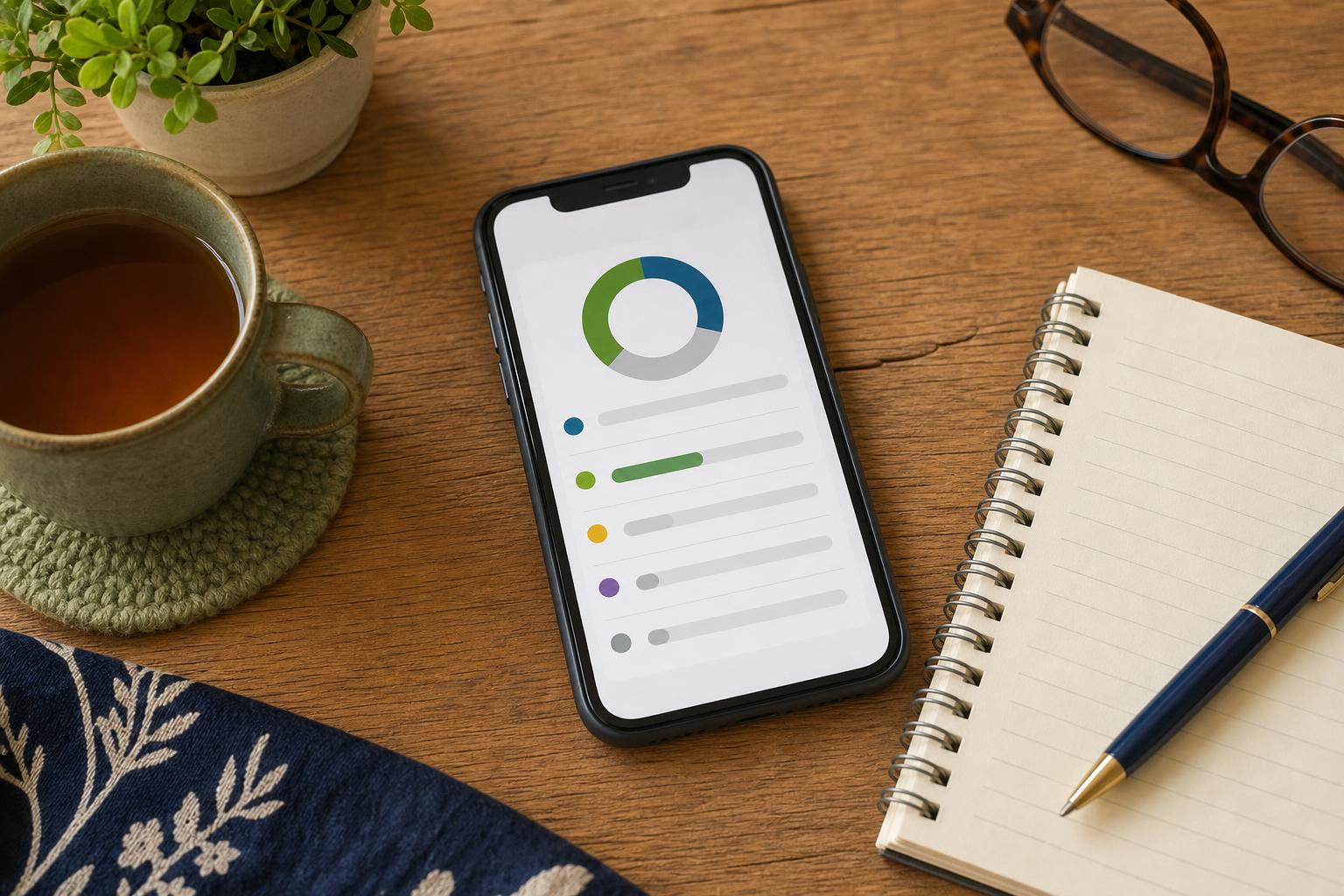
Phone storage is the total space on your device that holds apps, photos, messages, and system files. Think of it like a kitchen counter. If you keep stacking new plates and boxes, there is less room to prepare dinner. Storage fills up slowly with large files like videos and with many small things like app caches and message attachments. You can have 64 gigabytes, 128 gigabytes, or more, but the problem is the same. When storage is low your phone can lag, apps may refuse to update, and sometimes photos will not save. Knowing what fills the space helps you decide what to remove and what to keep.
How to check it
Start by looking at the storage report inside your phone settings. It shows a bar or list that breaks down what uses space: photos, apps, system, and more. On an iPhone go to Settings, General, then iPhone Storage. On an Android phone go to Settings, Storage, or search Settings for Storage. Look for the largest categories and a few individual apps that are big. If your phone shows many gigabytes used by a photo app, that points to photos or videos. If an app shows oddly large storage for documents and data, it might be holding old files you can remove.
- Open Settings, then Storage.
- Note the biggest categories and the largest apps.
- Tap a category or app to see details and options to clear data.

What not to do
Do not rush to factory reset the phone unless you have a full backup. A reset erases everything and then you must restore from a backup, which can be messy if the backup is incomplete or old. Do not delete system or unknown files that your phone warns about. Deleting them can make apps unstable. Avoid third-party cleaner apps that promise to free space fast. Many of these either do little or request unnecessary permissions. If a suggestion asks for passwords, one-time codes, or banking details, stop. Those are never needed to clear storage. Take a steady approach: identify big files first, then remove what you no longer use.
Safety tip
Before removing photos, videos, or messages, make a backup. Backups protect you if you delete something you later want. Use the phone’s built-in backup options: iCloud for iPhone or Google Backup for Android. You can also transfer photos to a computer or an external hard drive. Never email or text passwords or one-time verification codes to anyone. If someone asks you to log in while they guide you, refuse and do the work yourself or ask a trusted friend to sit with you. If you use cloud storage, check that syncing is complete so recent photos have uploaded before you delete local copies.
Tech term explained
Cache. This is temporary data an app keeps to load faster, like a cookbook leaving tabs in popular recipes. Caches can grow large over time. Clearing cache frees space without deleting the core app. On Android you can clear an app cache in Settings, Apps, then Storage for that app. On iPhone the only straight cache-clearing option is to offload the app, which removes the app but keeps its documents and data, or to delete the app and reinstall it. Offloading an app is safe for apps where you can log back in. Think of cache as crumbs that can be wiped away when needed.
The bottom line
You can free important space without losing treasured photos or breaking apps by checking storage, backing up, and removing big files first. Start with the steps above and handle photos and videos with extra care. If your phone still feels full after the easy steps, look for large app files or consider moving older media to a computer or an external drive. A tidy phone works better and gives you peace of mind when you want to take a spontaneous picture or install an update.
Take your time with this. A little cleanup now saves a lot of frustration later.
Emily
If your own phone is full, subscribe and send Emily a screenshot of the Storage screen. Ask: What can I delete safely?