
The Lumaneta Letter
How to spot fake update popups
Tell a real system or browser update from a scam and update safely.
Hi, I’m Emily. If a sudden popup says your computer or browser needs an urgent update, your heart might skip a beat. That’s normal. Most real updates are routine and not dramatic. Scary-sounding popups are often trying to trick you into clicking something that could install unwanted software or steal information. Today I’ll walk you through how to tell a legitimate operating system or browser update from a fake scare, and the safest way to update when you need to. I’ll keep it concrete so you can try the checks next time one of those popups appears while you’re reading the news or paying a bill.
What it means
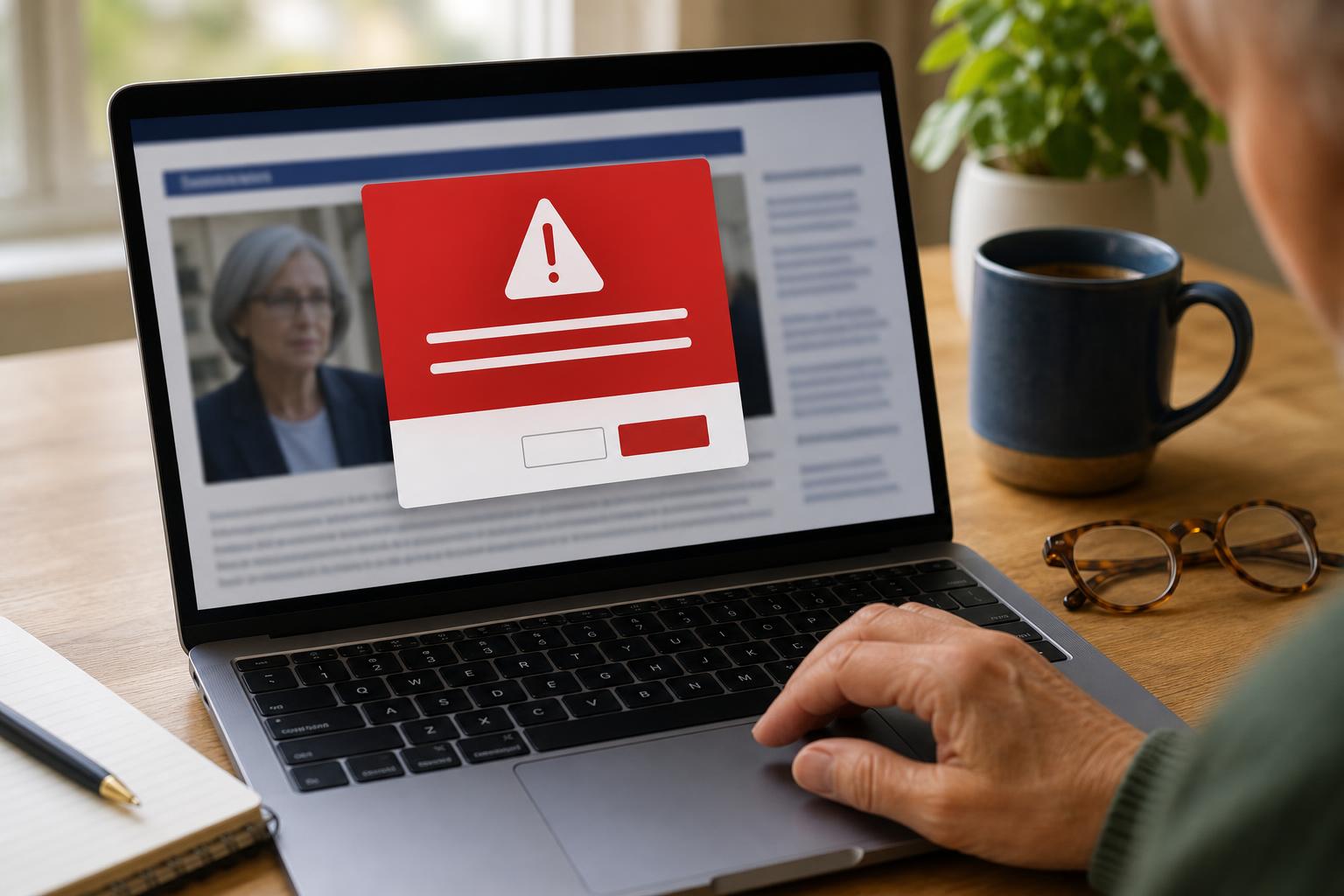
An operating system update is a change Microsoft, Apple, or the maker of your computer sends to improve security or fix bugs. A browser update is for Safari, Chrome, or Edge and keeps your web pages running safely. Real updates usually arrive quietly and are logged in your system settings. A fake update popup tries to look urgent, uses big red warnings, or says your files are at risk now. Picture seeing a bright banner in the middle of your screen while you’re reading a recipe. That banner is often the scam. Genuine updates do not pressure you with threats or countdowns.
How to check it
If a popup asks you to update, stop and verify before clicking. Follow these steps slowly and calmly to confirm whether the update is real.
- Open your system or browser settings directly (do not click the popup).
- Look for updates in the official place: Windows Update in Settings, Software Update on a Mac, or the browser's About page.
- If the settings say your software is up to date, close the suspicious popup and run a malware scan if you feel uneasy.
Doing this is like opening your oven to check the temperature instead of trusting a flashing light.

What not to do
Do not click buttons within a popup that asks for installation, payment, or personal information. Do not call any phone number shown in the popup. Scammers sometimes show a fake support number or ask you to give a one-time code. Never share codes, passwords, bank details, or Social Security numbers. If the popup offers immediate ‘fixes’ like downloading a tool, say no. Also avoid following links in emails that claim an update is urgent. Instead, go to the app or system settings yourself. Think of a popup as a stranger at your door: verify who they are before letting them in.
Safety tip
Keep automatic updates turned on for your operating system and browser if you can. That reduces surprise popups and mean software that preys on delays. Make a habit of backing up important files weekly to an external drive or cloud service. If you see a scary update popup and your system settings show no update, disconnect from the internet and restart. On restart, run your antivirus or a trusted malware scanner. If you use a family computer, teach one family member how to check updates so someone calm can walk you through it when you’re unsure.
Tech term explained
Patch: a small piece of software that fixes a security hole or problem. Think of it like a patch on a pair of jeans that stops a rip from getting worse. Browser: the program you use to look at web pages, like Chrome, Safari, or Edge. System settings: the menu on your computer or tablet where you manage updates, Wi-Fi, and accounts. About page: a browser area that often shows the current version and checks for updates. These words often show up in real update messages, but seeing them in a popup is not proof the popup is safe.
The bottom line
Most legitimate updates come through your device’s official settings and do not demand immediate action via a flashy window or phone call. If a popup makes you nervous, verify by opening the update area yourself, back up important files, and avoid entering personal information. If you are still unsure, take a picture of the popup, disconnect from the internet, and ask a friend or a tech-savvy family member to look at it with you. Treating every surprise update like a question to be checked will keep your computer safer and your day calmer.
Take care when a popup feels urgent. A short pause and a quick check will usually tell you everything you need to know.
Warmly,
Emily
If you want a calm walkthrough next time, reply to this note and I can guide you step by step.