
The Lumaneta Letter
When Wi‑Fi says connected but pages won’t load
Three quick checks that fix most home internet oddities.
Hi. If your phone or laptop says it is connected to Wi‑Fi but web pages, video calls, or streaming stop loading, you are not alone. That combination is especially frustrating because your device thinks everything is fine. Before you start unplugging half your house, there are three small checks that fix most problems without a full reboot. I wrote this because I spent an afternoon with a neighbor when her tablet showed the familiar connected icon while Netflix refused to play. Below I walk through what that icon means, three clear checks to run now, a few things not to try, and a safety note about keeping accounts secure. You can do this without tech support on the phone.
What it means
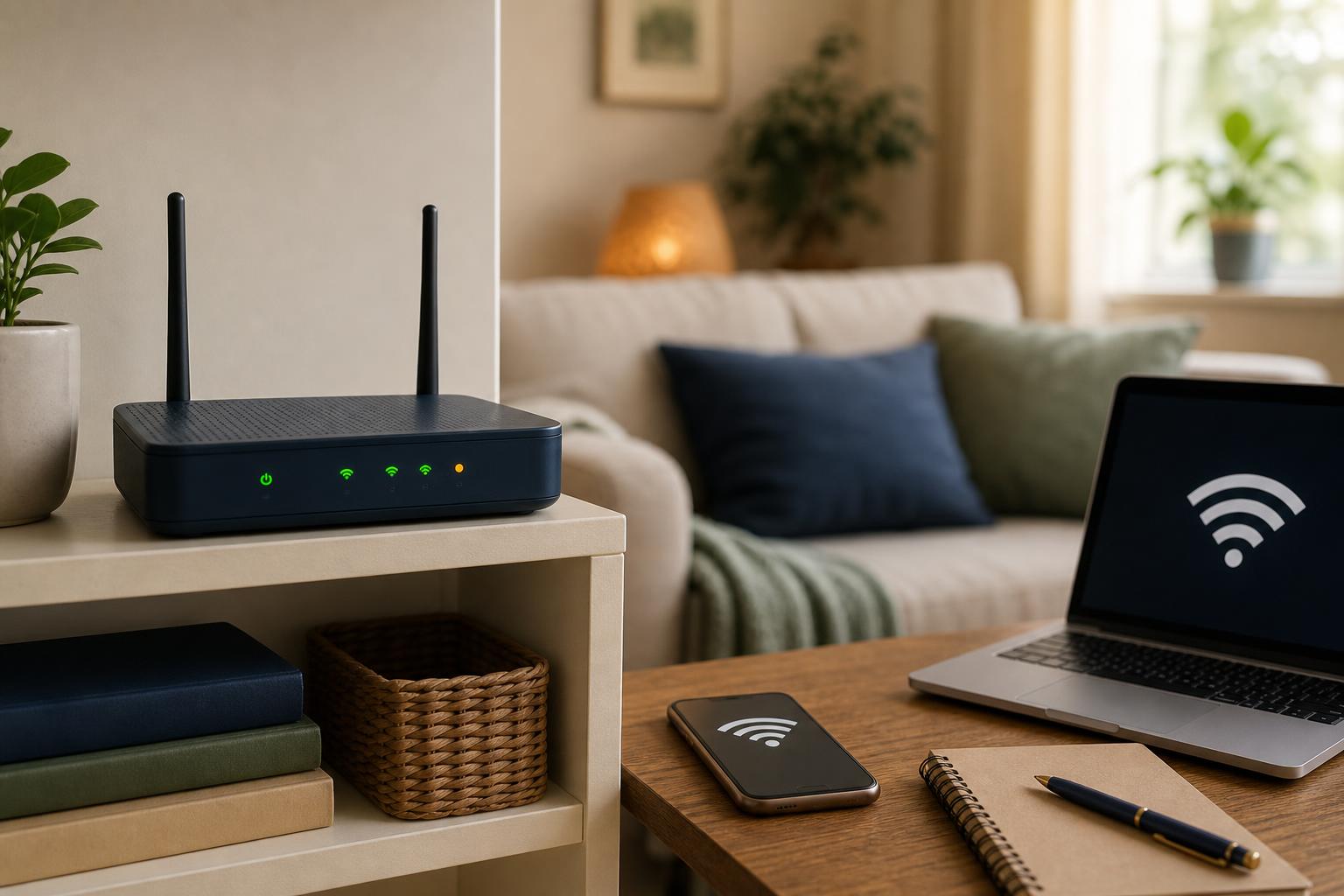
When a device shows the Wi‑Fi connected icon it usually means the device can talk to your router. It does not guarantee the router can talk to the wider internet. Think of it like being inside your home talking to someone in another room. If the hallway to the outside world is blocked, you are still connected inside but cannot get out. Another common cause is partial connectivity: the router is online for some services but a specific site or app cannot reach its server. Household examples: a smart thermostat updates but web browsing stalls, or a laptop prints to a home printer but cannot load email.
How to check it
These three checks find the most common problems without restarting everything. Do them in order; each one is fast and alone often solves it.
- Open a different app or website. Try a simple, low‑data site like example.com or a news homepage to see if any site loads.
- Check your router’s internet light. Walk to the router and look at the indicator labeled WAN, Internet, or a globe symbol. Note its color and whether it is steady or flashing.
- Test another device. Use a phone, tablet, or neighbor’s device on your Wi‑Fi. If one device fails but others work, the problem is device specific. If all devices fail, the issue is likely the router or your internet service.

What not to do
Avoid a few tempting but unhelpful moves. Do not change router settings unless you are comfortable and know why you are doing it. Tweaking unknown options can make things worse and requires logging in with an admin password. Do not repeatedly power cycle the modem and router in rapid succession. Turning devices off and on once is fine. Finally, do not call your internet company and give them one‑time codes or passwords. They will never need those codes. If you must share account info, only give the username and account number requested by the company and read their instructions carefully.
Safety tip
When checking your network, protect account and device information. Never share passwords, Social Security numbers, bank numbers, or one‑time verification codes with anyone who calls you. If a technician asks to remotely access your computer, use a reputable company number and ask for a scheduled callback. If you must log into the router, use a device on your home network and close the browser window after. Keep your router’s admin password different from the Wi‑Fi password and store it in a password manager or on paper in a safe place.
Tech term explained
IP address. In plain terms, an IP address is the number your home network uses to find other computers on the internet. Your router gets a public IP address from your internet company and gives your devices private IP addresses inside your house. If the public IP is missing or incorrect your devices will look fine locally but cannot reach websites. Another useful phrase is DNS, which is a phonebook that translates website names into IP addresses. If DNS fails, pages will not load even when the network is technically connected.
The bottom line
Start small and narrow the problem with the three checks: try a different site, look at the router’s internet light, and test another device. These steps separate device problems from router or service problems so you avoid unnecessary reboots and password digging. If all devices fail and the router’s internet light is off or red, call your internet service and report the outage. If only one device fails, look at its Wi‑Fi settings or software updates. Keep calm, work methodically, and you will often fix things in five to 15 minutes.
Take care. I hope one of these checks gets you back online quickly.
Warmly,
Emily
If you prefer, I can walk you through these steps by email. Reply and tell me what you see.